 Marten
Download Marten
Free on every device, no ads. No films come with it: you add your own server, playlist or add‑ons.
- Open the zip, then open Marten. It offers to move itself to Applications. It’s notarised by Apple, so it opens without a warning.
- Sign in, or create a free account on the site or in the app.
- It updates itself, and asks first. The changelog says what’s new.
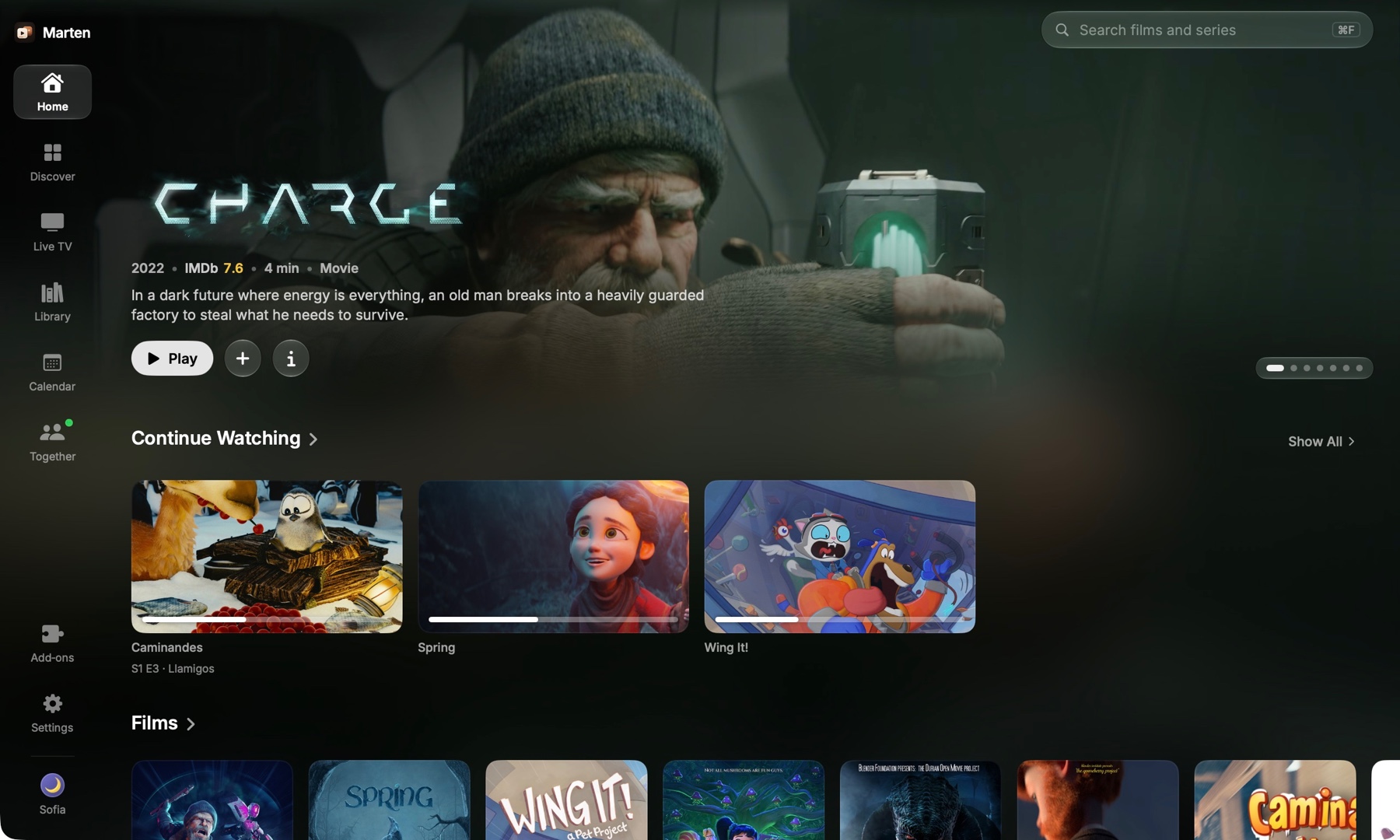
Windows
Windows 10 or 11, 64‑bit
Download for WindowsBeta
To run Marten from a folder, without installing it.
- Open the installer. If Windows says “Windows protected your PC”, choose More info, then Run anyway. It says that because Marten is new to it.
- Open Marten from the Start menu and sign in, or create a free account.
- When a new version is out, Marten installs it for you and opens again. From the .zip, it opens the download instead.
Linux
64‑bit PCs. The .deb is for Ubuntu, Debian, Mint and Pop!_OS
Download the .debBeta
For other distributions.
- On Ubuntu, Debian, Mint or Pop!_OS, open the file you downloaded and choose Install. Your system installs everything Marten needs along with it.
- On Arch, CachyOS, Manjaro or EndeavourOS, paste the command below in a terminal and type your password.
sudo pacman -U … - On another distribution, unpack the .tar.gz into a folder of its own and run
./martenthere. It needs Qt 6 WebEngine from your distribution. - Sign in, or create a free account. When a new version is out, Marten installs it for you: it asks for your password, then opens again. From the .tar.gz, it opens the download instead.
iPhone & iPad
iOS and iPadOS 18 or later
Add to AltStoreBeta
For Sideloadly and tools like it. Marten tells you when a new version is out.
- Install AltStore on your iPhone or iPad. It needs AltServer on a Mac or PC once, to set it up.
- Press Add to AltStore on the iPhone or iPad, or in AltStore go to Sources, press + and paste
getmarten.app/altstore.json. - Install Marten from the source and sign in. iOS asks you to turn on Developer Mode the first time. AltStore renews the app every 7 days while your device and the computer with AltServer are on the same Wi‑Fi.
In the EU, use AltStore PAL instead. It installs Marten like any app, with no computer and no renewing: in AltStore PAL go to Sources, press + and paste getmarten.app/altstore-pal.json.
Want it on your TV too? See Apple TV or Android TV.
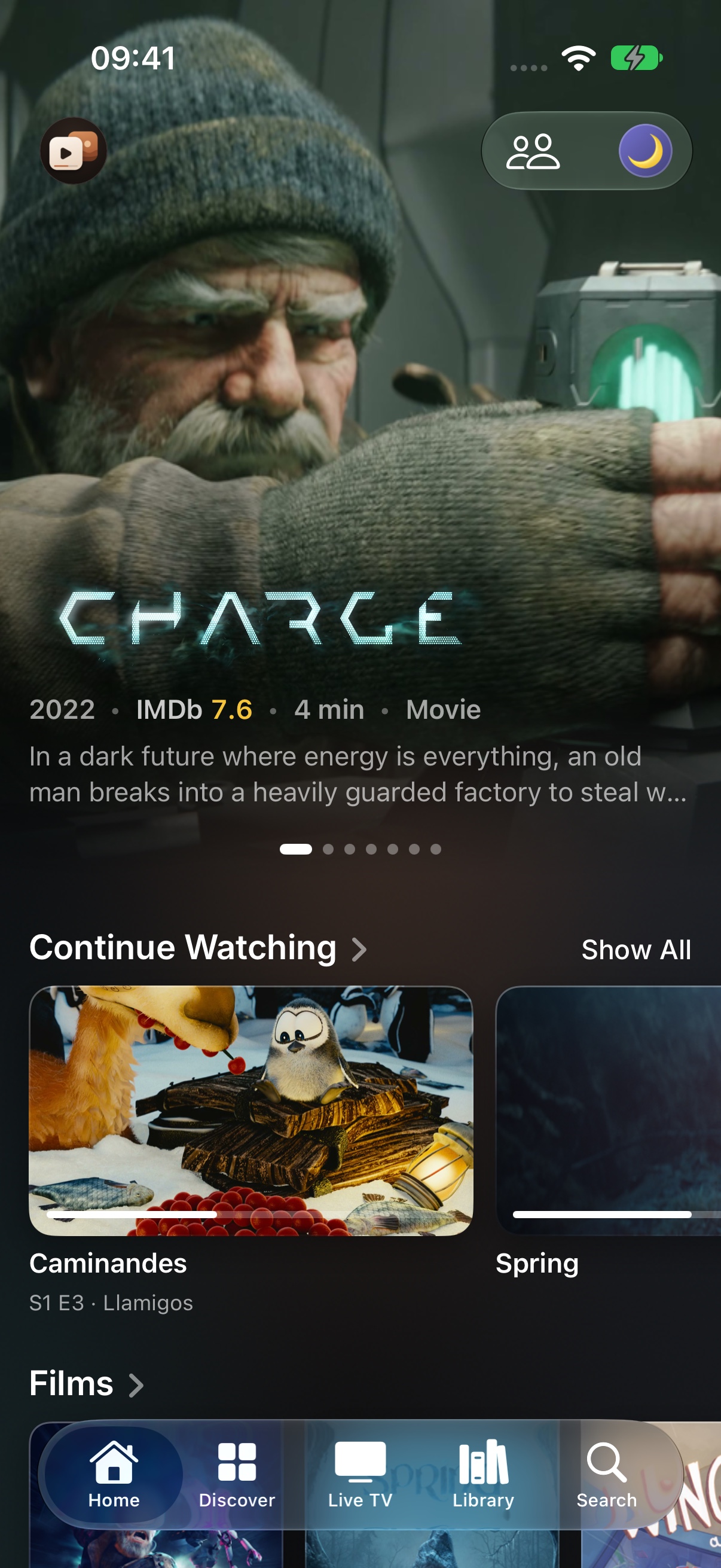
Android
Android 9 or later, Google TV and Android TV too. Not on Google Play yet
Download the APKAndroid TV · beta
Phones and tablets · beta
- It’s one app: the TV app on a TV and the phone app on a phone or tablet. Download the APK on the device itself, with its browser or a downloader app, or copy it over on a USB stick.
- Open it. Android asks once to let that app install apps. Allow it, then install Marten.
- Sign in, or create a free account. On a TV you can scan the code on the screen with your phone. Marten tells you when an update is out and installs it when you choose Update.
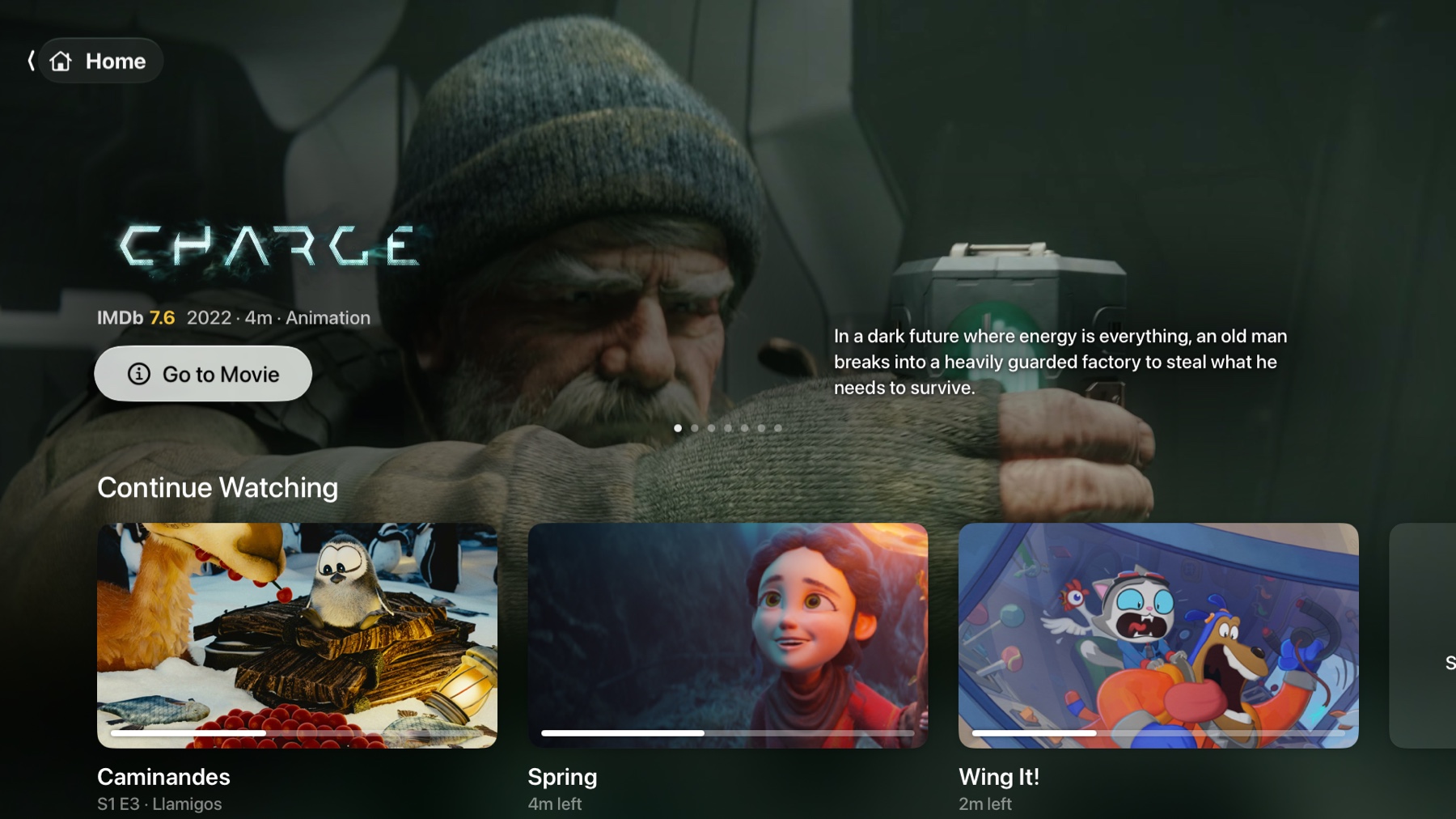
Apple TV
tvOS 18 or later
Marten
The full app: your own server, IPTV and add‑ons, with the Supporter features. Marten on a Mac, a Windows or Linux computer, or an Android phone puts it on the Apple TV over Wi‑Fi and keeps it signed.
Install on Apple TVMarten 5.6 · 2 November
For a tool you already use, such as Sideloadly on a computer or atvloadly on a server. You renew it yourself, every 7 days with a free Apple ID.
Marten on TestFlight
Marten is on TestFlight too. It installs like any app and updates by itself, without the Supporter features, since TestFlight doesn’t allow payments.
Join on TestFlightBeta
- Install TestFlight on the Apple TV, and on an iPhone or iPad signed in to the same Apple Account.
- Open the invitation on the iPhone or iPad and press Accept.
- Install Marten from TestFlight on the Apple TV and sign in. You can scan the code on the screen with your phone.
Every file comes from getmarten.app or Marten’s GitHub releases.
After you download
Sign in
Or create a free account, in the app or here. It keeps your library and Continue Watching the same everywhere.
Add a source
Your Jellyfin, Emby or Plex server, your add‑ons, an IPTV playlist, or your Stremio account in one go.
Put it on your TV
The same account on every screen: Apple TV or Android TV.